How Row-Level Security Works in Power BI
Learn how row-level security implementation Power BI uses static and dynamic roles, model relationships, and testing to protect data before reports are shared.
- Use roles to define which rows each group of report users can see, and align each rule with your data structure.
- Choose static filters for stable access groups or dynamic filters when access should follow each user’s identity.
- Review table relationships and filter direction carefully, since they affect how security filters flow through the data model.
- Test each role with representative users before sharing reports, checking that permitted data appears and restricted rows remain hidden.
- For broader reporting needs, connect security design with data modeling and Fabric modernization so access rules fit the wider analytics environment.
Power BI can show different users different rows in the same report, without creating a separate report for each person. A row-level security implementation in Power BI applies role-based filters to data, limiting what each user can see according to their assigned role or identity. It controls access to rows, not the report’s overall design.
This separation can make reporting easier to share across teams while keeping each view relevant. But the rules must reflect your data structure and how users are assigned. A filter that is too broad or mapped incorrectly can expose records to the wrong people or hide information they need. This guide explains how row-level security works, how static and dynamic roles differ, and how to test access before sharing a report. It also explains how security fits into the wider Power BI model, so you can make informed implementation decisions and avoid treating a filter as a substitute for carefully managed permissions.
Row-level security implementation Power BI
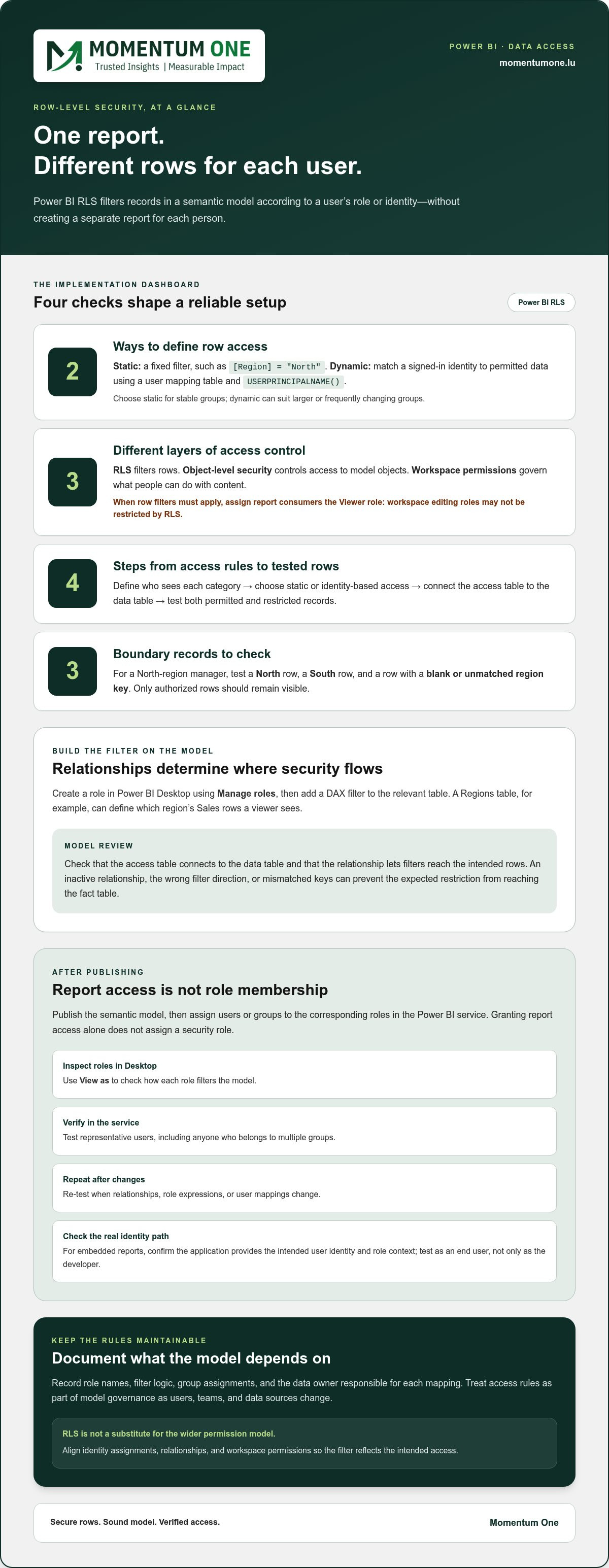
Power BI row-level security (RLS) filters records in a semantic model according to a user’s role. For example, a sales manager assigned to the North region can see North sales rows, while a colleague assigned to the South can see South rows. The report can remain the same; the model’s filter determines which records each viewer sees.
RLS doesn’t replace every form of access control. It filters rows, not individual columns or measures. Object-level security controls access to model objects, while workspace permissions determine what people can do with content. A user with an editing role in a workspace may not be restricted by RLS, so assign report consumers the Viewer role when row filters must apply.
Build roles around the data model
Start with the table that defines access, such as a Regions table containing region names and manager details. In Power BI Desktop, open Manage roles, create a role, and add a DAX filter to the relevant table. A static example is [Region] = "North". That role always filters data to North, regardless of who signs in.
Use static roles when access groups are stable and straightforward to maintain. Dynamic RLS may suit larger or frequently changing user groups. Add a user mapping table that links each person’s sign-in identity to permitted regions, then use USERPRINCIPALNAME() in a filter to match the signed-in identity. One role can then return different rows for different users.
- Define who should see each category of records, such as a region, department, or account.
- Choose a static filter or an identity-based mapping table, based on how often access assignments change.
- Connect the access table to the data table with a relationship that lets the filter reach the intended rows.
- Test the role with sample identities and confirm both allowed and restricted records.
Relationships determine how filters move through a model. For example, a Region dimension connected to Sales can filter Sales rows through that relationship. If the relationship is inactive, points in the wrong direction, or uses mismatched keys, the expected restriction may not reach the fact table. Check the model’s relationship paths before adding complex DAX.
Assign and test access after publishing
Testing in Desktop is useful, but it doesn’t complete deployment. After publishing the semantic model, assign users or groups to the corresponding roles in the Power BI service. Report access and role membership are separate: granting access to a report alone doesn’t assign a security role.
- Use View as in Power BI Desktop to inspect how each role filters the model.
- In the service, test roles with representative users and verify the resulting report view.
- Check a user who belongs to multiple groups, since membership can affect which roles apply.
- Re-test after changes to relationships, role expressions, or user mappings.
Test boundaries, not just typical records. If a North manager should see North data only, check a North row, a South row, and a record with a blank or unmatched region key. Only authorized rows should remain visible. Repeat the test for each role and for users with different assignments.
For embedded reports, identify the authentication and identity flow before applying RLS. The application must provide the intended user identity and role context for the model to enforce the right filter. A report that displays correctly for its developer may behave differently for an end user, so test it through the actual access path.
Document role names, filter logic, group assignments, and the data owner responsible for each mapping. A short record such as “Regional Manager: region comes from the access table” makes future changes easier to review. For broader controls around permissions and model protection, see this Power BI data security guide.
Momentum One: Fabric Migration & Modernization
Momentum One’s Fabric Migration & Modernization service can help when Power BI security needs to fit into a broader data-platform change. Moving reports and models into Microsoft Fabric, for example, is a useful time to review where access rules live, how user identities map to data, and whether model relationships still support the intended filters.
If row-level security behaves inconsistently across reports, the cause may lie in the data model or its underlying warehouse design, not just in a role expression. Momentum One also offers Data Modeling & DAX Optimization and Data Warehouse & Lakehouse Design to address these connected foundations. Its training solutions can help teams understand how to maintain their models and access rules.
To align security with a Fabric migration or model redesign, contact Momentum One or visit momentumone.lu.
Build Security Into Your Next Power BI Decision
A thoughtful row-level security implementation in Power BI involves more than setting a filter. It’s a design decision that should align with how your organisation structures data, assigns access, and evolves its reporting. As teams and data sources change, treat access rules as part of ongoing model governance, not a task to revisit only when something breaks.
Momentum One offers Power BI Consulting, Governance & Performance to help organisations establish a clear approach to Power BI security and oversight. When access controls are affected by a wider platform transition or model redesign, its Fabric Migration & Modernization and Data Modeling & DAX Optimization services can support that work.
Bring your reporting goals and security questions into the conversation, and identify a practical next step for your environment. Discuss Power BI with Momentum One. A considered approach today can help your reporting remain useful as your data needs develop.