Imagine the frustration of a business user waiting twenty seconds for a simple slicer to update while a critical meeting hangs in the balance. It’s a scenario many data professionals face as their environments grow and their models become more complex. Optimizing DAX for large datasets is often treated as a syntax puzzle, but the reality is that high performance is an architectural choice. If your Power BI Premium capacity is struggling with long refresh times or complex formulas that feel impossible to debug, you aren't alone.
We believe that your analytics should move as fast as your business decisions. In this guide, you’ll master the architectural and formula-level techniques required to eliminate report lag and ensure your models scale seamlessly with enterprise-level data. We will show you how to achieve sub-second visual loading times and more efficient resource utilization in Power BI Premium or Microsoft Fabric. By following our repeatable framework for writing performant DAX, you can transform a sluggish report into a responsive, reliable asset that your stakeholders actually enjoy using.
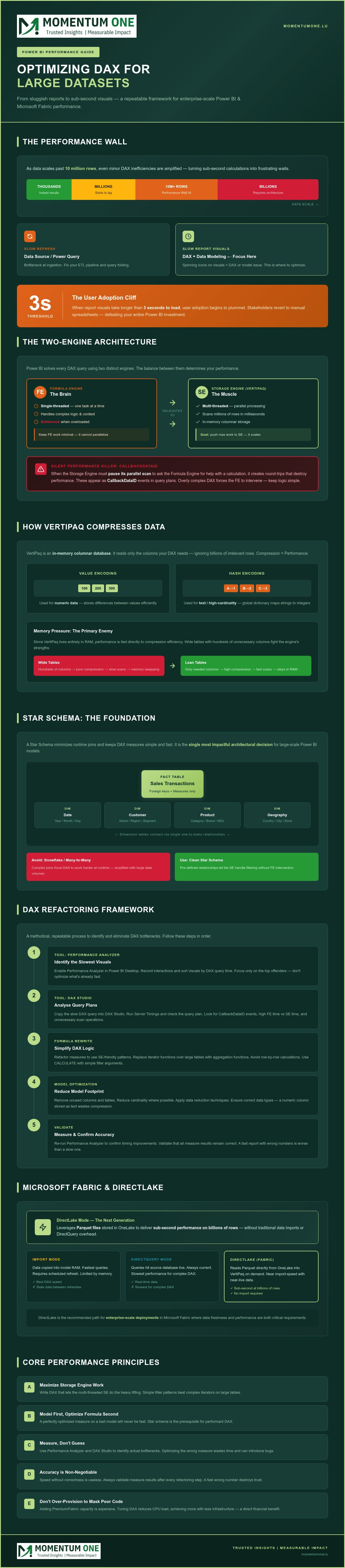
When you first build a Power BI report, everything feels fast. With a few thousand rows, your measures return results instantly. However, as your data scales toward 10 million rows and beyond, you often hit what architects call the "Performance Wall." This isn't just about the volume of data; it's about the technical limits of how Data Analysis Expressions (DAX) queries are processed. At this scale, even a minor syntax inefficiency is amplified, turning a sub-second calculation into a frustrating wait for the end user.
It's vital to distinguish between slow reports and slow refreshes. A slow refresh usually points to bottlenecks in your data source or Power Query transformations. A slow report, characterized by spinning icons on visuals, is almost always a DAX or data modeling issue. Optimizing DAX for large datasets requires a shift in mindset. You aren't just writing formulas; you're managing how the underlying engine allocates its resources.
Power BI uses two engines to solve your DAX queries. The Formula Engine (FE) is the "brain." It's highly intelligent and can handle complex logic, but it's single-threaded. This means it can only process one task at a time. The Storage Engine (SE), also known as VertiPaq, is the "muscle." It's multithreaded and designed to scan millions of rows in milliseconds using parallel processing.
Performance issues arise when the Formula Engine has to do too much heavy lifting. If your DAX is overly complex, the FE can't delegate the work to the SE. One of the most common "silent killers" in query plans is the CallbackDataID. This occurs when the SE has to pause its fast, parallel scan to ask the FE for help with a specific calculation. These round trips destroy performance. Your primary goal in optimizing DAX for large datasets is to keep the logic simple enough that the Storage Engine can handle the bulk of the work.
The Business Impact of DAX Latency
User experience is the heartbeat of any analytics project. Industry observations suggest that when report visuals take longer than three seconds to load, user adoption begins to plummet. If a dashboard feels sluggish, stakeholders stop asking questions of the data. They go back to their manual spreadsheets, which defeats the purpose of your Power BI investment.
Beyond adoption, there's a significant financial cost. Many organizations try to "brute force" performance by over-provisioning Power BI Premium or Fabric capacity. This is an expensive way to mask poor code. By tuning your DAX, you reduce the CPU load on your capacity, allowing you to do more with less. Crucially, you must maintain report accuracy while chasing speed. A fast report that provides the wrong number is worse than a slow one. High-performance DAX ensures that your data integrity stays intact while the user experience remains seamless.
The VertiPaq Engine: How Power BI Processes Large Datasets
To understand why certain formulas lag, we need to look under the hood at the VertiPaq engine. This in-memory, columnar database is the powerhouse behind Power BI performance. Unlike traditional databases that read entire rows of data, VertiPaq reads only the specific columns your DAX measure requires. This architectural design allows the engine to ignore billions of rows of irrelevant data during a calculation. It's the cornerstone of optimizing DAX for large datasets because it minimizes the amount of data that needs to be moved into the processor.
Memory pressure is the primary enemy of this engine. Since VertiPaq lives entirely in RAM, performance is directly tied to how well your data is compressed. If your model is too large to fit comfortably in the allocated memory, the engine is forced to swap data out, leading to massive latency. This is why compression isn't just a storage benefit; it's a hard performance requirement for enterprise-level models.
Columnar Compression and Why It Matters
VertiPaq achieves its legendary speed through sophisticated encoding methods. It uses Value Encoding for numeric data and Hash Encoding to create a "Global Dictionary" for text or high-cardinality values. When you build "wide" tables with hundreds of columns, you're essentially fighting the engine's natural strengths. Each unnecessary column reduces the compression ratio and increases the memory footprint, making scans slower.
By applying Data reduction techniques for Import modeling, you ensure that VertiPaq can keep the entire dataset in-memory. This allows for the lightning-fast scans that make DAX feel instantaneous. Choosing the correct data types and reducing column cardinality are simple moves that yield massive results in query speed.
Query Folders and Data Locality
Performance isn't just about what happens inside Power BI. It's about where the work is done. Ensuring that your data transformations happen as close to the source as possible is vital. When logic is pushed back to the data source, such as a SQL database or a Lakehouse, the VertiPaq engine receives a clean, pre-filtered dataset that is ready for analysis.
In many cases, a robust data warehouse design is the most effective first step in DAX tuning. By using materialized views or pre-aggregated tables at the source, you reduce the complexity of the calculations that DAX has to perform at runtime. If you find your current architecture is struggling to keep up with growing data volumes, our team can help you evaluate a Data Architecture Modernization strategy to streamline your performance from the ground up.
Many developers spend hours tweaking measure syntax when the real bottleneck lies in the underlying relationships. The golden rule of Power BI is simple: DAX is fastest when it operates on a Star Schema. While it's tempting to think of DAX in isolation, optimizing DAX for large datasets is impossible without a clean data model. A well-designed model allows the engine to perform simple, efficient scans rather than complex runtime joins.
Snowflake schemas are a common pitfall in enterprise environments. By normalizing dimension tables, you force the engine to traverse multiple relationships to resolve a single filter. Each "hop" across a relationship adds overhead. In a dataset with 100 million rows, those extra milliseconds of join logic aggregate quickly, leading to the sluggish report behavior users despise. To achieve high performance, you must flatten your dimensions into a single link to your fact table.
Star Schema vs. Flat Tables
It’s a common misconception that one giant "flat" table is faster because it eliminates relationships. In reality, flat tables often perform worse on large datasets. Because the VertiPaq engine uses columnar storage, it's highly optimized for 1:N relationships. A Star Schema allows the engine to filter a small dimension table and then apply those results to the large fact table using high-speed bitmapped indexes.
If you're dealing with a legacy model that has grown too complex, using data architecture modernization can help you restructure these tables for the modern engine. Transitioning from a messy "spaghetti" model to a clean Star Schema is often the single most effective step you can take to improve query speed.
Reducing Cardinality for Better Compression
Cardinality refers to the number of unique values in a column. It's the primary factor in Storage Engine performance. High-cardinality columns, such as unique Transaction IDs, GUIDs, or high-precision timestamps, are the enemies of compression. They prevent the engine from using efficient bit-clustering, which leads to a bloated memory footprint and slower scans.
- Split Date and Time: Never keep a combined DateTime column in a fact table. Splitting them into separate Date and Time columns drastically reduces the number of unique values.
- Round Decimals: If your analysis doesn't require five decimal places, round your currency or measurement columns. Fewer unique values mean better compression.
- Avoid 'Description' Columns: Large text fields should live in dimension tables, never in fact tables.
- Disable 'Auto Date/Time': This setting creates hidden tables for every date column in your model. In large datasets, this bloat can add hundreds of megabytes of unnecessary memory usage.
By focusing on these structural elements, you simplify the work the engine has to do. When the model is clean, optimizing DAX for large datasets becomes a matter of refining logic rather than fighting the architecture.
Step-by-Step: How to Refactor DAX for Speed
Optimizing DAX for large datasets isn't a matter of luck; it’s a disciplined sequence of diagnostic steps. When a report feels heavy, don't start rewriting measures at random. Instead, follow this structured refactoring framework to pinpoint and resolve the exact cause of the lag. This methodical approach is the most reliable way of optimizing DAX for large datasets without introducing logic errors.
Step 1: Use Performance Analyzer. Open this tool in Power BI Desktop, click "Start recording," and then "Refresh visuals." Look for the "Long Pole" visual, which is the one taking the most time to render. This identifies exactly which query is causing the bottleneck.
Step 2: Isolate the query in DAX Studio. Copy the DAX code from the Performance Analyzer and paste it into DAX Studio. Enable "Server Timings" to see the split between the Formula Engine and the Storage Engine. As we discussed in earlier sections, a high FE percentage usually means your code is too complex for parallel processing.
Step 3: Replace expensive iterators. Functions like SUMX or AVERAGEX can be slow if they're forced to scan large fact tables row-by-row. Whenever possible, use vectorized functions or ensure your iterators are working on a summarized, smaller subset of data.
Step 4: Optimize FILTER functions. Avoid using FILTER on an entire table. This forces the engine to scan every column in that table, which is a massive waste of resources. Instead, filter specific columns or use KEEPFILTERS to maintain context without the overhead.
Step 5: Leverage variables (VAR). Variables are evaluated once and their result is stored. This prevents the engine from calculating the same logic multiple times within a single measure, which is a major win for efficiency.
Common DAX Anti-Patterns to Avoid
Modernizing your code also means shedding old habits. For example, using SELECTEDVALUE is often faster and more readable than the older IF(ISFILTERED(...)) pattern. Similarly, avoid using FILTER(ALL(Table), ...) on tables with millions of rows. This creates a massive uncompressed materialization in memory that can crash your capacity. For high-volume data, consider alternatives to DISTINCTCOUNT, such as using a summarized helper table, to reduce the strain on the Storage Engine.
To go deeper, use the VertiPaq Analyzer within DAX Studio to find the "heaviest" columns in your model. This tool reveals exactly which fields are bloating your memory footprint. Reading Query Plans is another vital skill, as it allows you to see the physical and logical steps the engine takes to resolve your query. Because these techniques require a high level of technical precision, our corporate Power BI training is designed to help your internal development teams master these advanced tools. If your team is ready to stop guessing and start measuring, we can provide the structured guidance needed to build a high-performance culture.
Scaling to the Future: Microsoft Fabric and DirectLake
As we move through 2026, the analytics landscape is shifting away from traditional Power BI Premium (P-SKUs) toward the unified Microsoft Fabric environment. This transition introduces DirectLake mode, a breakthrough that fundamentally changes how we approach optimizing DAX for large datasets. By querying Delta Parquet files directly in OneLake, DirectLake eliminates the need for time-consuming data imports while maintaining the lightning-fast performance users expect from in-memory models. It represents a significant leap forward for organizations managing massive data volumes.
In this new paradigm, the Storage Engine interacts with data stored in a standardized, compressed format. This allows for sub-second DAX performance even on datasets containing billions of rows. However, this scale comes with specific guardrails that require careful management. For instance, an F64 SKU supports up to 1.5 billion rows per table. If you exceed these data volume limits, the model may "fall back" to DirectQuery mode, which results in slower query times. This makes a well-planned modern Fabric roadmap essential for any enterprise looking to scale without hitting technical ceilings.
DirectLake: The Best of Both Worlds
DirectLake offers the speed of Import mode with the real-time scale of DirectQuery. Because the engine loads only the necessary columns from Parquet files into memory on demand, it significantly reduces the upfront refresh burden. While Import mode remains a strong choice for maximum DAX complexity on smaller datasets, DirectLake is the clear winner for massive, high-velocity data. It ensures that your most complex measures stay responsive even as your data lake grows into the petabyte range.
Efficiency is also a financial priority in the Fabric ecosystem. Because Fabric operates on a capacity-based model, inefficient DAX doesn't just slow down reports; it consumes more Capacity Units (CUs) and increases your operational costs. Optimizing DAX for large datasets is no longer just about user experience. It's a direct lever for cost control in your cloud environment. Writing performant code ensures that you maximize your F-SKU investment while providing a seamless experience for your stakeholders.
Maintaining a high-performance environment requires more than a one-time fix. Performance "creep" often happens as new measures are added and data volumes increase over time. Our managed Power BI services provide proactive monitoring of capacity metrics and query durations to catch bottlenecks before they impact your business users. We act as your reliable strategist, auditing and tuning your critical models to ensure they remain lean and efficient. Partnering with experts allows your internal teams to focus on delivering insights while we handle the technical heavy lifting of performance governance and architectural health.
Building a Foundation for Scalable Insights
Mastering performance in Power BI requires moving beyond basic formulas to a deep understanding of engine architecture. By prioritizing a clean Star Schema and shifting heavy calculations from the single-threaded Formula Engine to the parallel Storage Engine, you can eliminate the lag that frustrates business users. Optimizing DAX for large datasets is an ongoing commitment to technical quality that ensures your reports remain responsive as your data volumes grow toward billions of rows.
As you transition to modern environments like Microsoft Fabric, these optimization techniques become even more vital for maintaining sub-second loading times and managing capacity costs. As a certified Microsoft Solutions Partner, Momentum One specializes in Fabric and Power BI Premium performance. We have a proven track record with enterprise-scale data models and can help you audit your environment to find hidden bottlenecks. Scale your analytics with professional DAX optimization services from Momentum One to turn your data into a high-speed strategic asset. Don't let technical debt slow your progress; building a robust architecture today will pay dividends for years to come.


 Microsoft Power BI
 01.08.2026